Frame rates from 1 to 120
Version1.2.7Improved
Shipped Friday, 18 Sep 2026 at 23:00 CEST
Low frame rates are back for stop motion and animation work. Studio V2 lists 8, 10, 12, 15, 24, 25, 30, 50, 60 and 120 frames per second, and takes any whole rate from 1 to 120. The rate you set is the timeline’s frame grid and the rate your video exports at. The Rate list under the canvas now applies your choice. Before, it closed without changing the rate.
01Improved
Pick a frame rate, or type your own
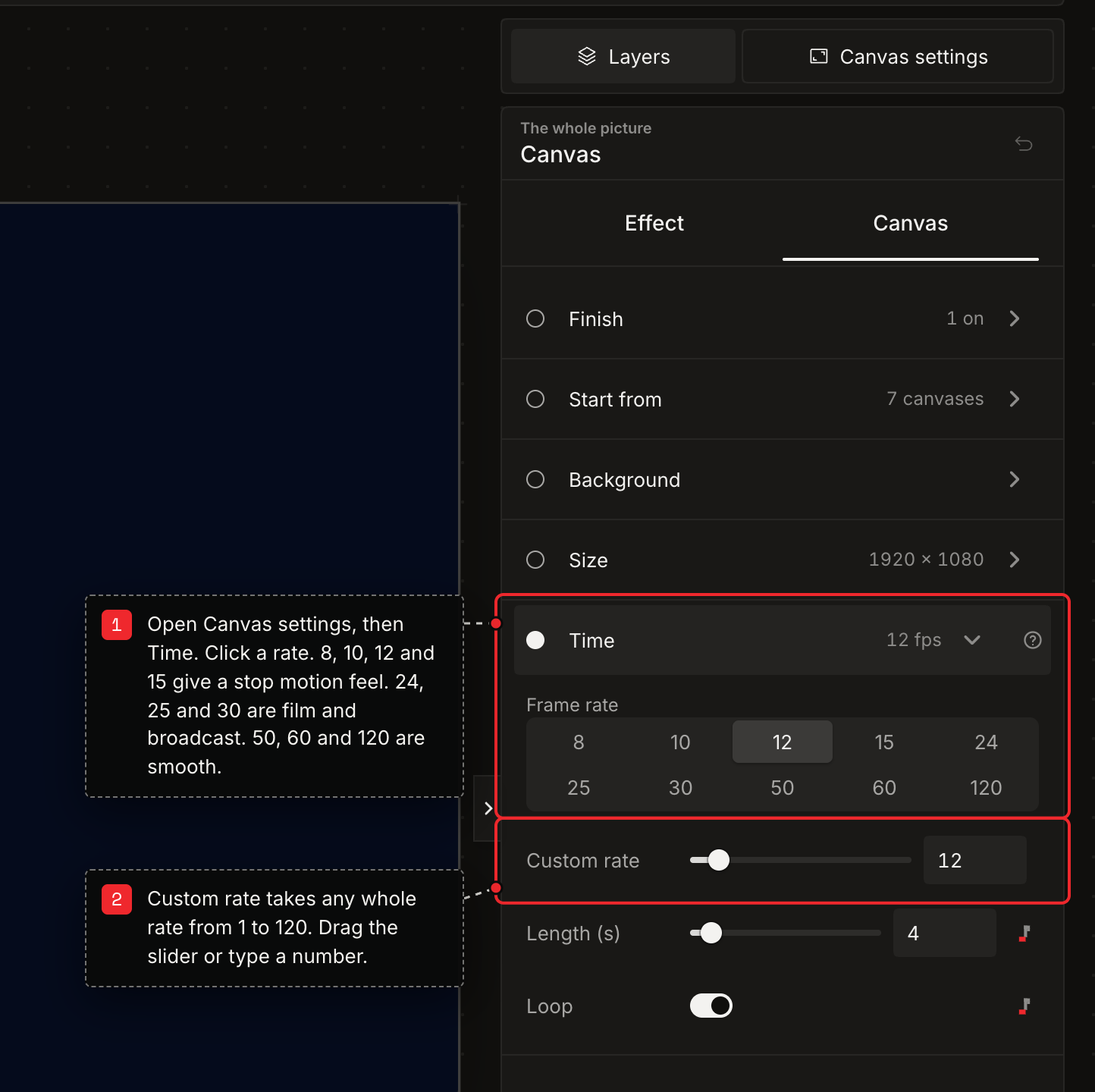
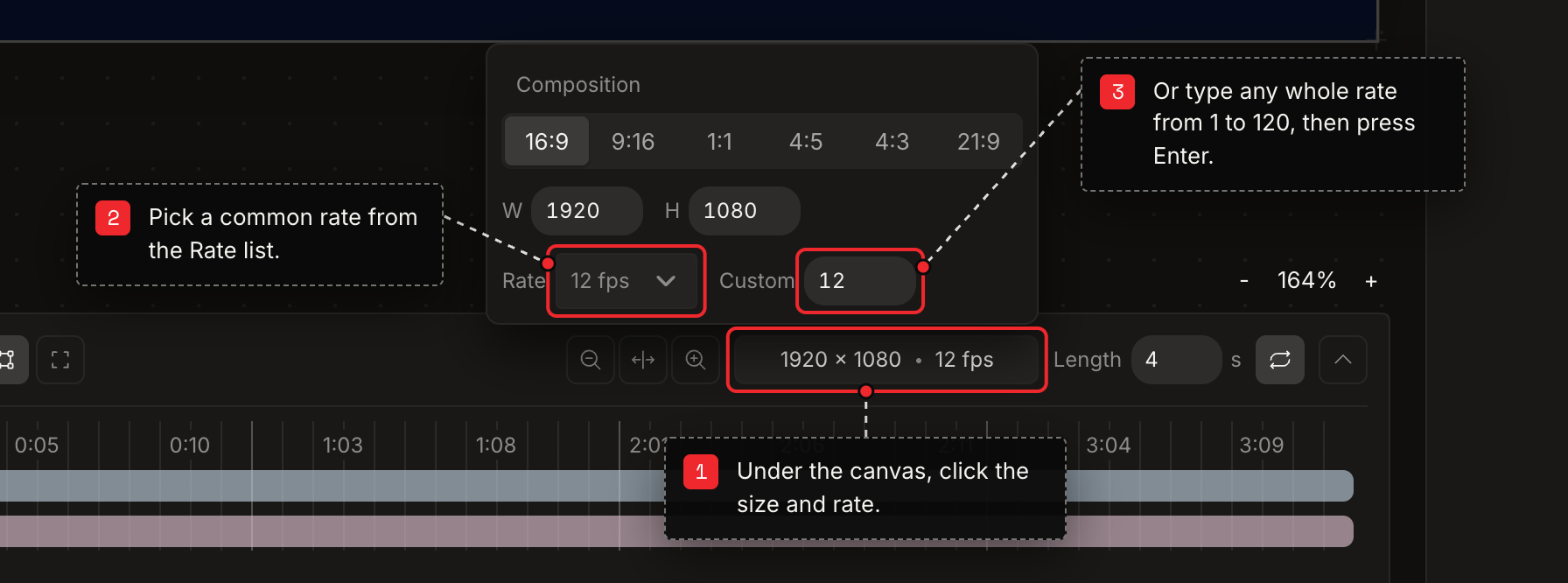
The common rates sit one click away in Canvas settings, under Time. Custom rate covers everything between them. The same choice lives under the canvas, in the timeline, where the size and rate are shown.
- 01Open Canvas settings and open Time.
- 02Click a rate. 8, 10, 12 and 15 give a stop motion feel.
- 03For any other rate, drag Custom rate or type a whole number from 1 to 120.
- 04Or click the size and rate under the canvas, then use the Rate list or the Custom box.
02Improved
Export at a different rate
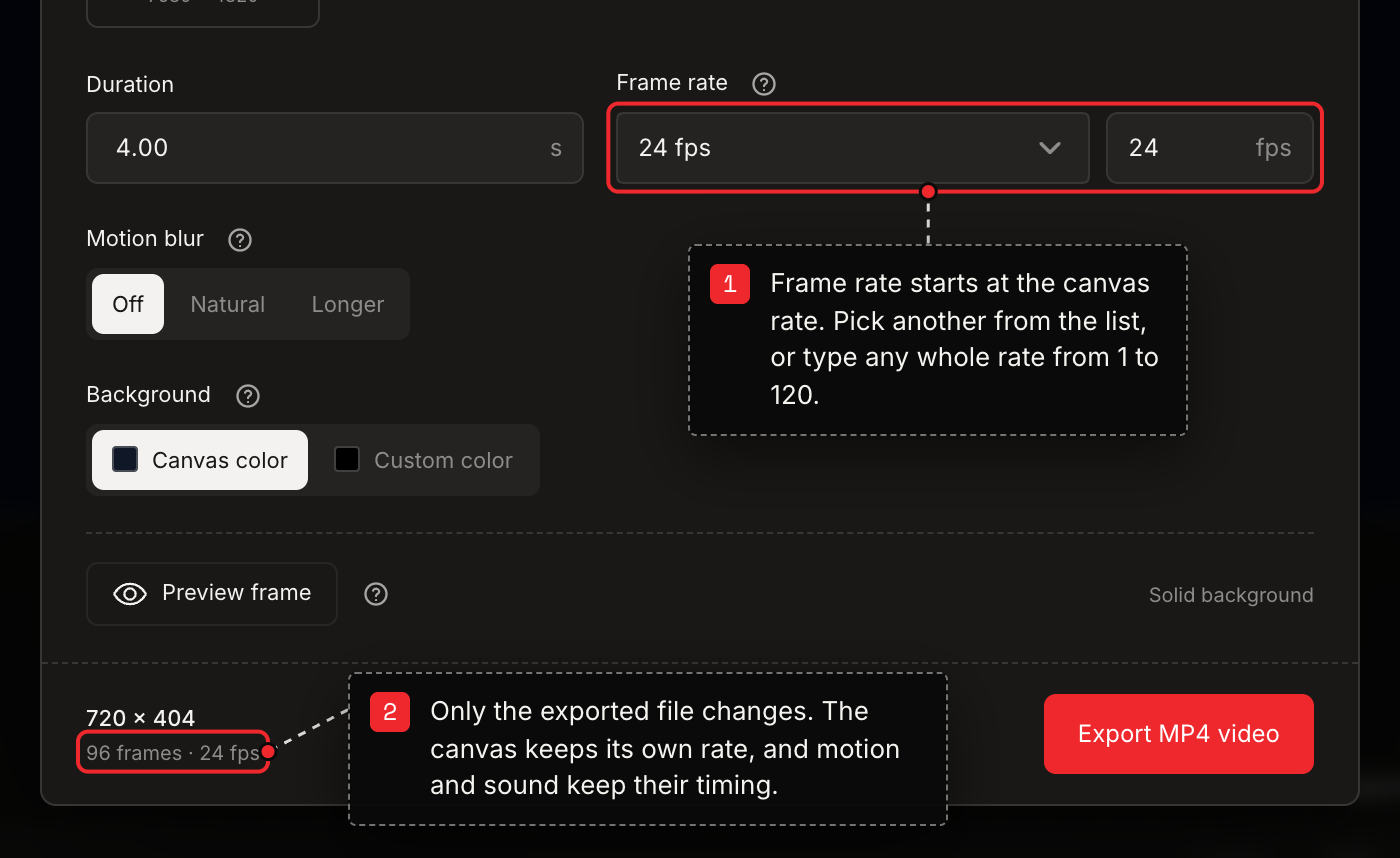
A video export starts at the canvas rate. You can change it for the file alone, from the same list of rates or by typing one.
- 01Press Export and choose MP4 video.
- 02Under Frame rate, pick a rate from the list or type any whole rate from 1 to 120.
- 03Check the frame count at the bottom of the sheet, then press Export MP4 video.