An easier mobile studio
Shipped Sunday, 13 Sep 2026 at 12:39 CEST
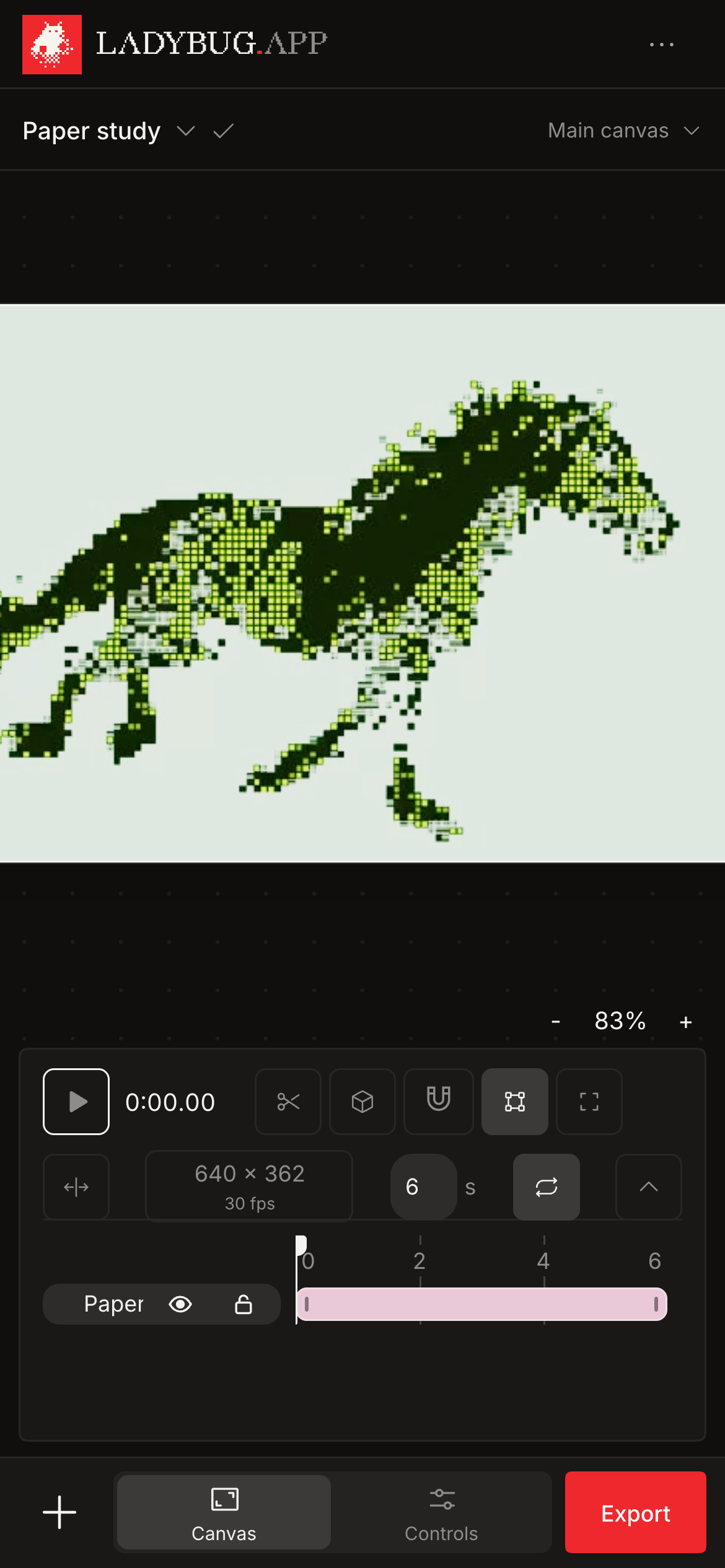
The mobile studio now puts a larger Ladybug.app logo above one compact row for the project and canvas. Add media and Export sit beside Canvas and Controls at the bottom. The three-dot menu keeps Projects, Help and tutorials together. Project and canvas menus support renaming, canvas switching and clear save status. The default control lists for Contour Type and Holo also match the current control ranking. Sound opens its audio output from your tap before loading the source, and source errors stay visible in its controls. Safari depth preparation uses a separate runtime to avoid a WebAssembly compilation problem that can reload the page. Image preparation also holds fewer large copies in memory.
More room for your canvas
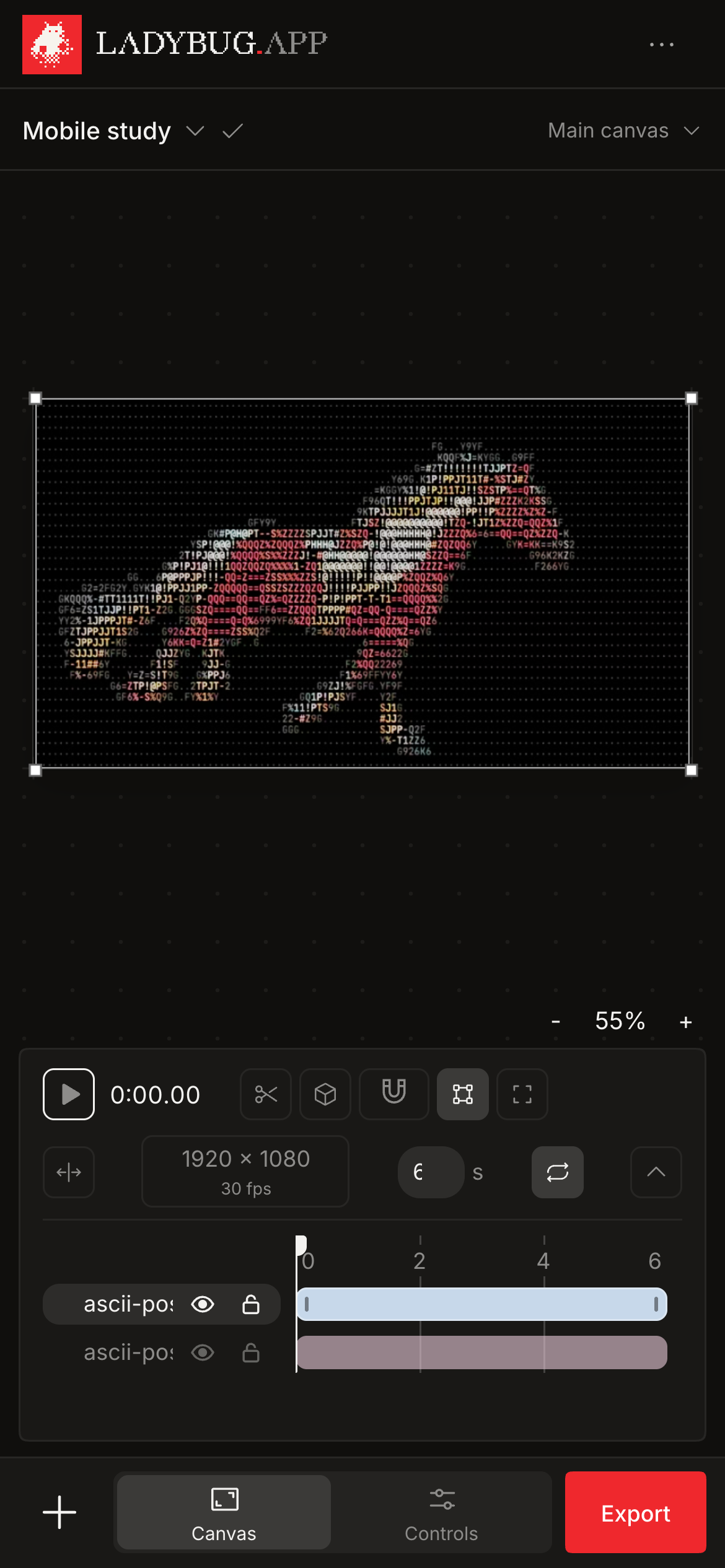
Add photos and videos with the plain plus at the bottom left. Export stays at the bottom right in both Canvas and Controls. The compact header has a larger logo, a project menu and a canvas picker, replacing the separate canvas strip.
- 01Tap the plus at the bottom left and choose your photos or videos.
- 02Switch between Canvas and Controls in the bottom bar. Export is available on the right in both views.
- 03Tap the project name, then Rename project. Use Done or Enter to save the name.
- 04Tap Main canvas to switch canvases, create a component or rename the active component.
- 05Open the three-dot menu for Projects, Help and tutorials. Open the project menu to see where the project is saved or review a save error.


Clearer sound and depth startup
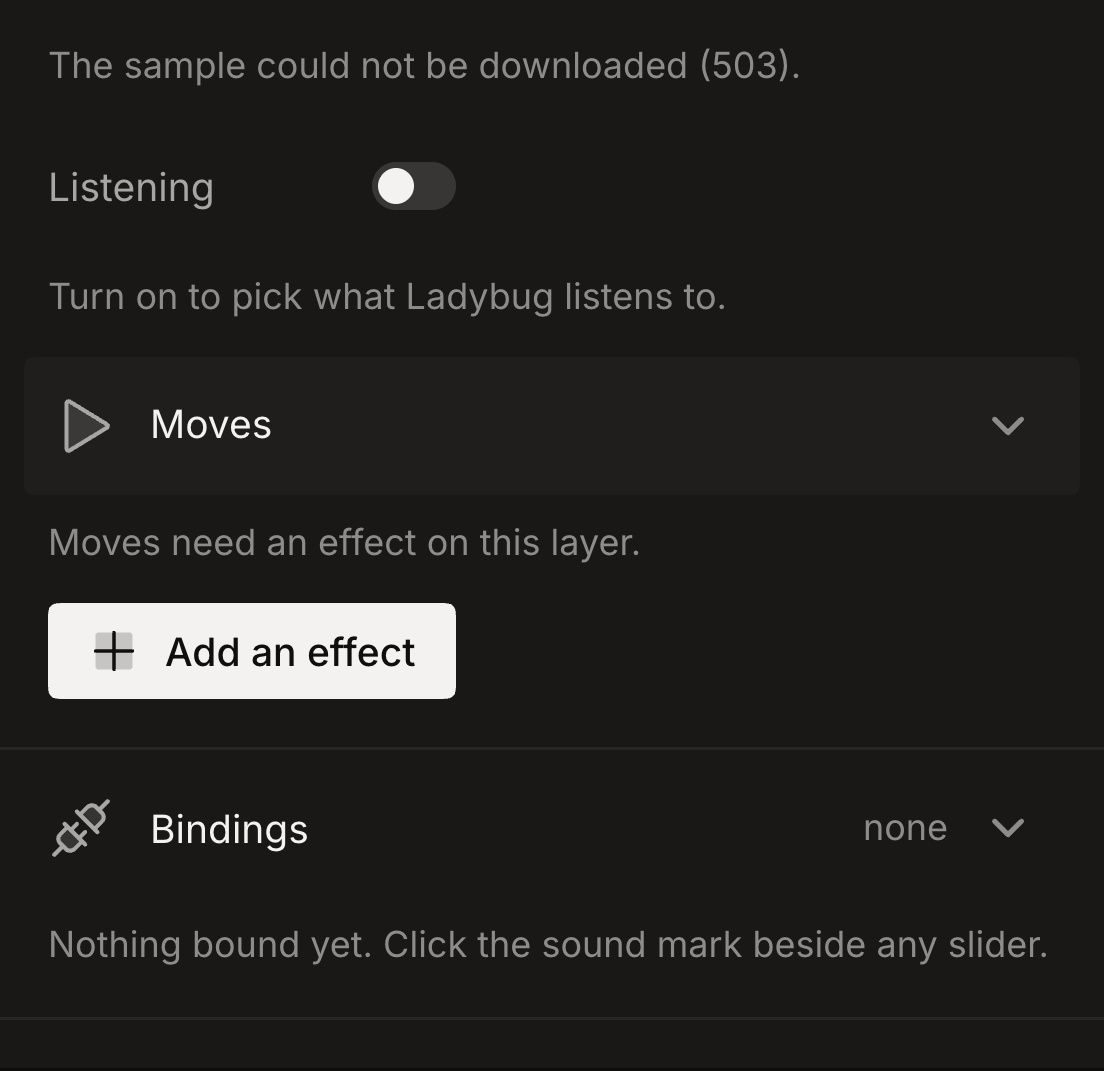
Sound opens its audio output during your tap, so source loading does not lose that playback permission. If opening a source fails, its explanation stays in Sound and the controls become available for another attempt. Safari prepares depth with the same models and resolution through a separate processing runtime. Image preparation also avoids an extra model download buffer and full-size picture copy.
- 01Open Controls, then Sound, and turn on Listening.
- 02If the source fails to open, read the message in Sound and turn on Listening again to retry.
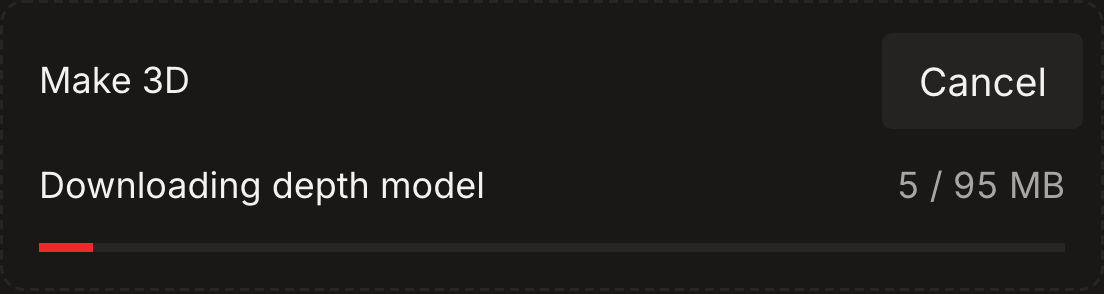
- 03Select a photo or video and choose Make 3D. Keep the page open while depth prepares. Safari processing can take longer. Completed depth stays in the saved project.
Pinch to zoom on 2D canvases
Use two fingers to zoom and pan around a regular 2D canvas, including component canvases. The view follows the midpoint of your fingers without resizing the artwork. Lifting a finger ends the pinch cleanly.
- 01Open Canvas with a regular 2D project or component.
- 02Place two fingers on the canvas and spread them apart or bring them together. Move both fingers to pan.
- 03Tap the zoom percentage to fit the canvas again.