Reliable exports and a new template gallery
Shipped Saturday, 12 Sep 2026 at 19:21 CEST
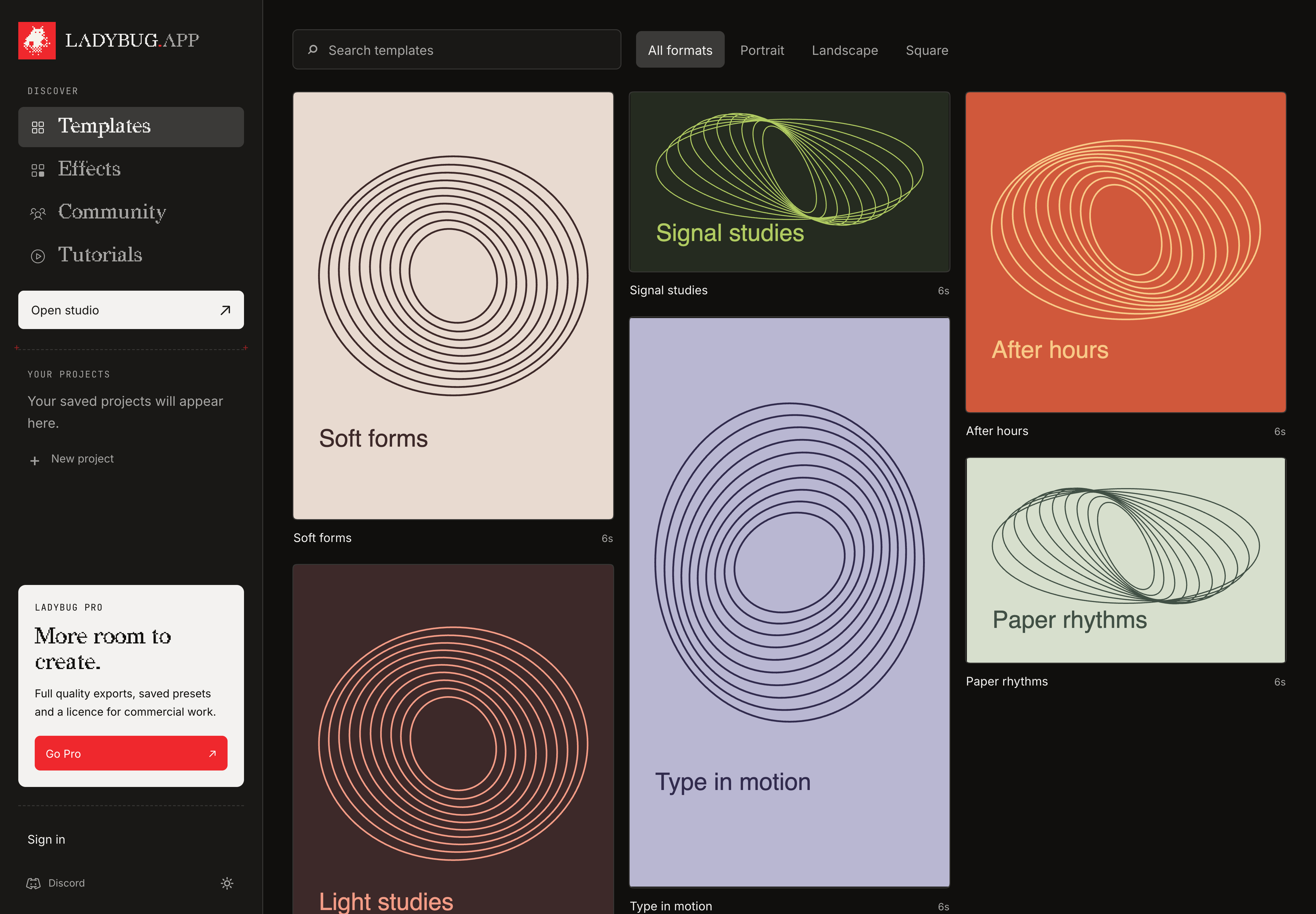
The export card now closes after a download or cancellation so you can export again. Missing media and unavailable effects stop export with an explanation. Detailed SVG artwork uses grouped color paths without raster size multipliers. Depth preparation can recover from a stalled worker, and missing starting-look previews are included. If a main Studio control cannot download, its recovery notice keeps the project open while you retry or save and refresh. The template gallery now preserves portrait, square and wide previews in three columns, with the same collection available from Studio Home and Templates.
Finish and export again
The progress card closes after the download starts. Cancel releases the active export before returning you to the editor. The project-copy reminder is now a temporary notice, so it does not interrupt your next export.
- 01Open Export, choose a format and export your artwork.
- 02When the download starts, the progress card closes automatically. Open Export again whenever you need another version.
- 03If an export stops with an error, read the explanation and use Export settings to retry.
Catch missing content before saving
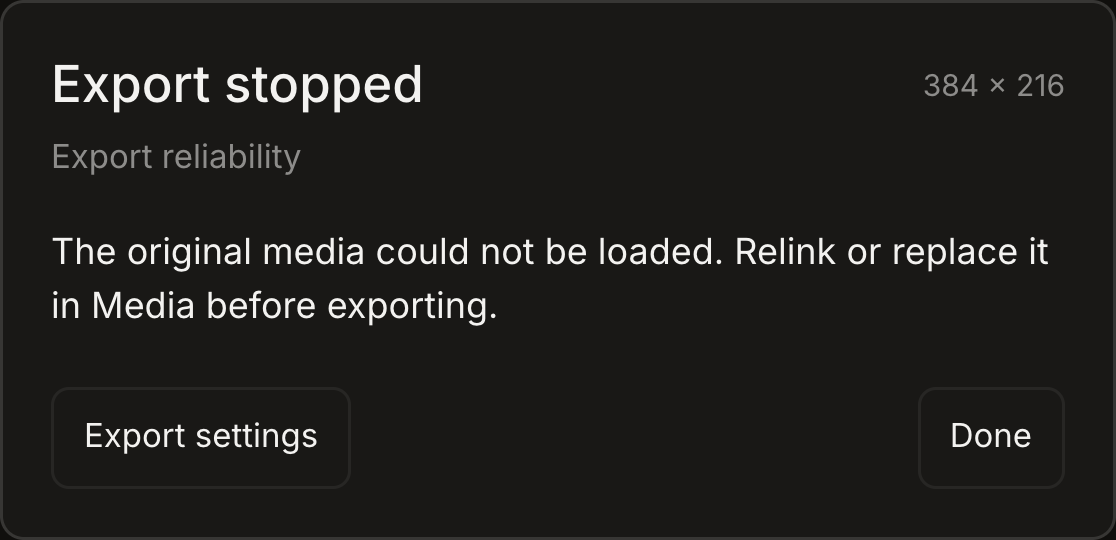
Exports now stop when original media cannot load or an effect is unavailable. A video frame that fails to decode no longer passes through as an old frame. Download and video temporary-file cleanup also continue after the export card closes. Effects wait for their required drawings, and failed loading can be tried again.
- 01If original media is missing, close the status card and relink or replace it in Media.
- 02If an effect is unavailable, reload Ladybug or disable that effect before retrying.
- 03Open Export again and inspect Preview frame before saving.
Export detailed artwork as SVG
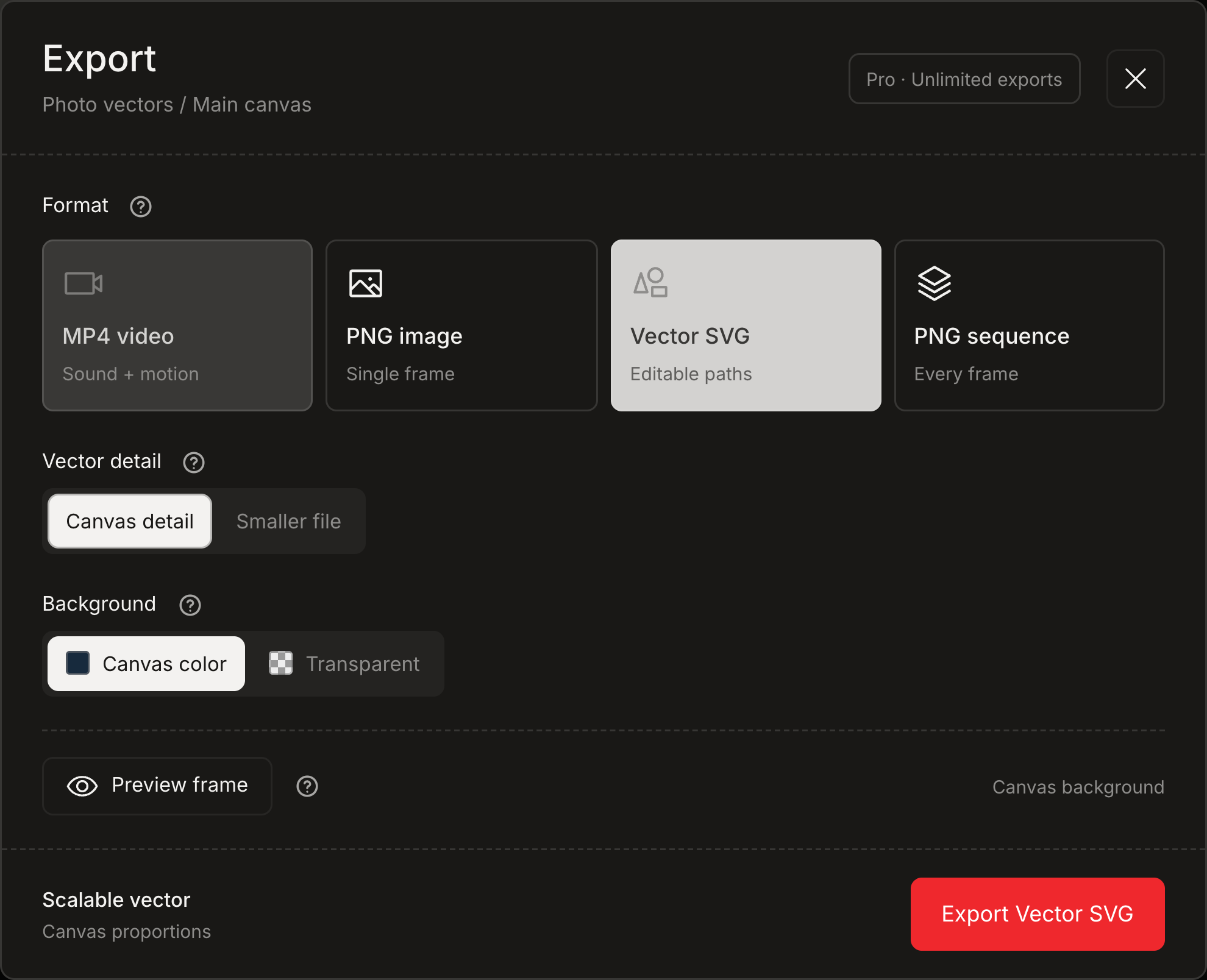
Canvas detail preserves the rendered colors and transparency as vector paths. Text and simple shapes keep their outlines. Image effects preserve their rendered color regions, so enlarging them does not reconstruct extra source detail. Very large files can still reach the file-size limit.
- 01Open Export and choose Vector SVG.
- 02Keep Canvas detail to preserve the rendered artwork. Choose your background.
- 03Use Preview frame to inspect the result, then choose Export Vector SVG. Smaller file deliberately simplifies detail and color.
Retry depth and browse complete starting looks
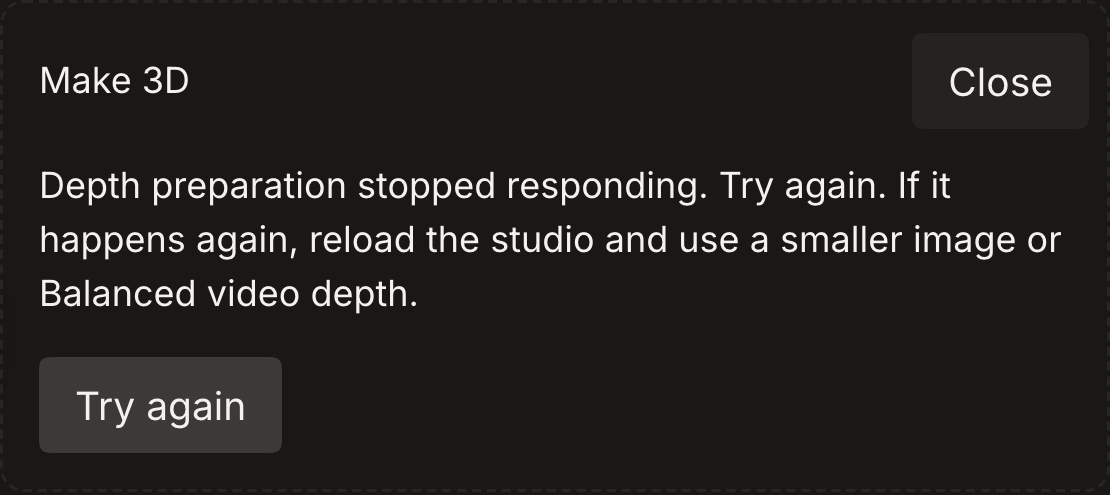
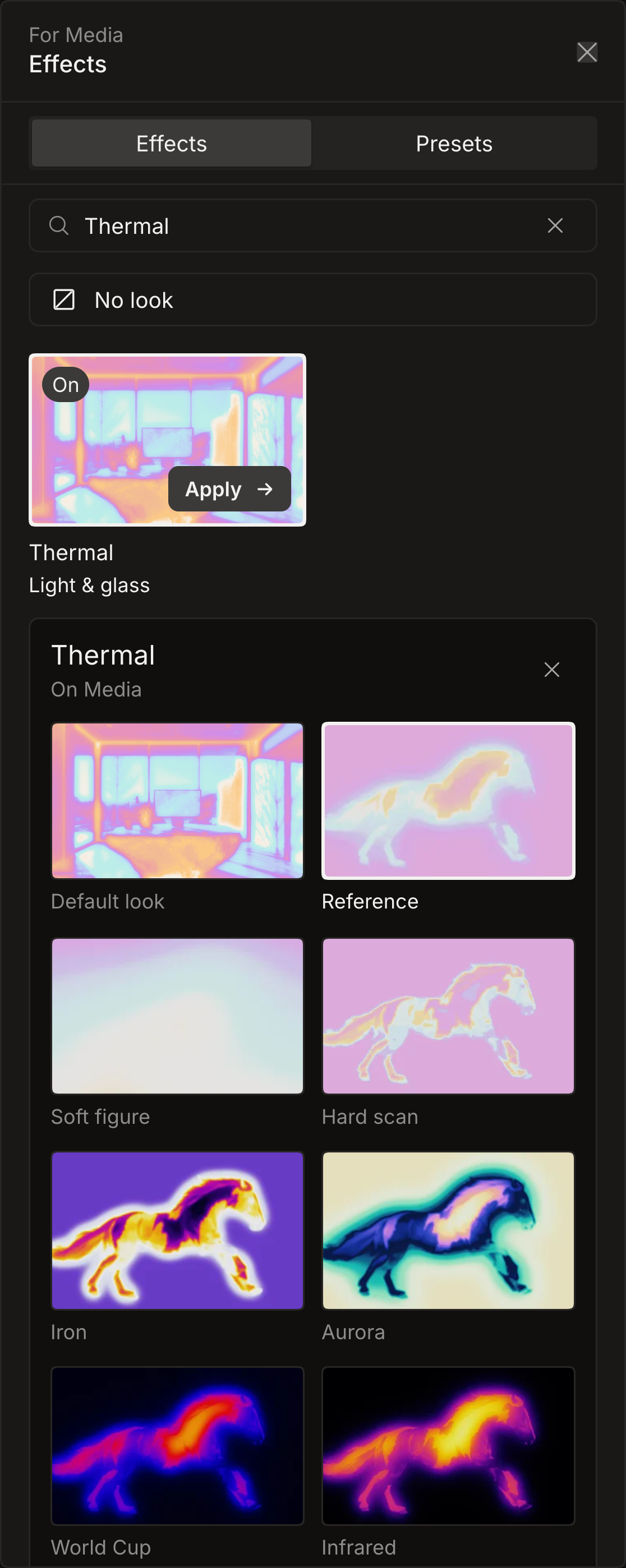
Depth preparation that stops responding now explains the problem and offers Try again. Cancel closes the active job. Thermal and Particle Brush starting looks have their own previews, and VHS has its card picture.
- 01If depth preparation stops responding, choose Try again. Use Cancel to leave a running job.
- 02If the problem repeats, reload Ladybug and try a smaller picture or Balanced video depth.
- 03Open Effects, choose Thermal or Particle Brush, and select a starting look from its preview.
Keep editing when a control cannot load
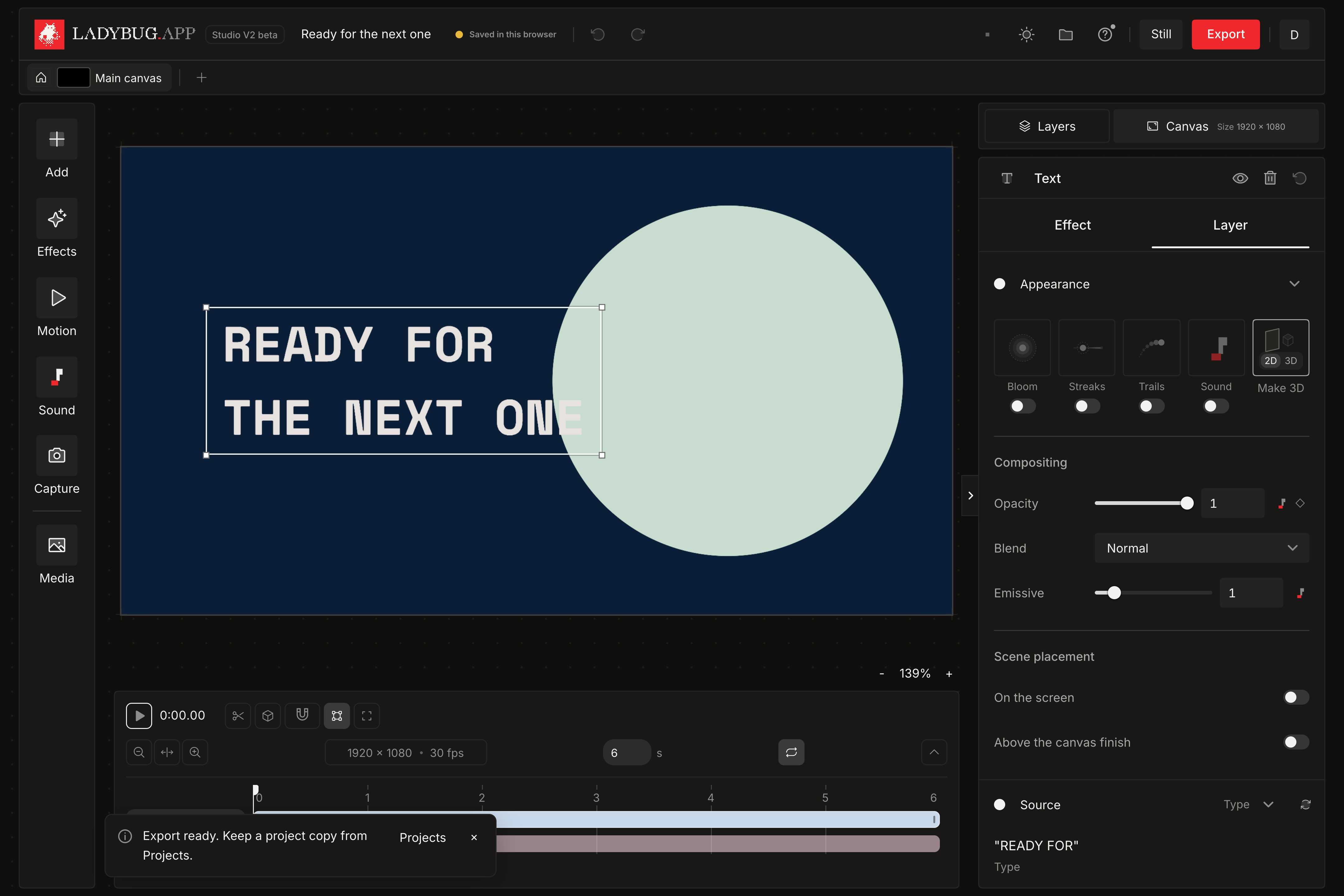
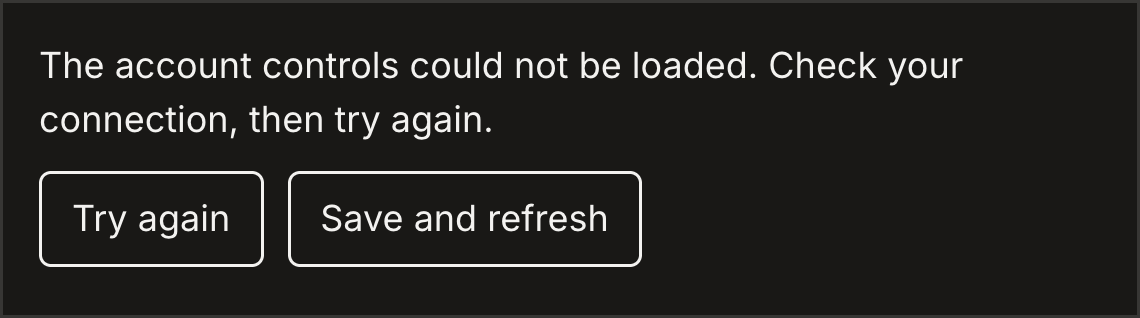
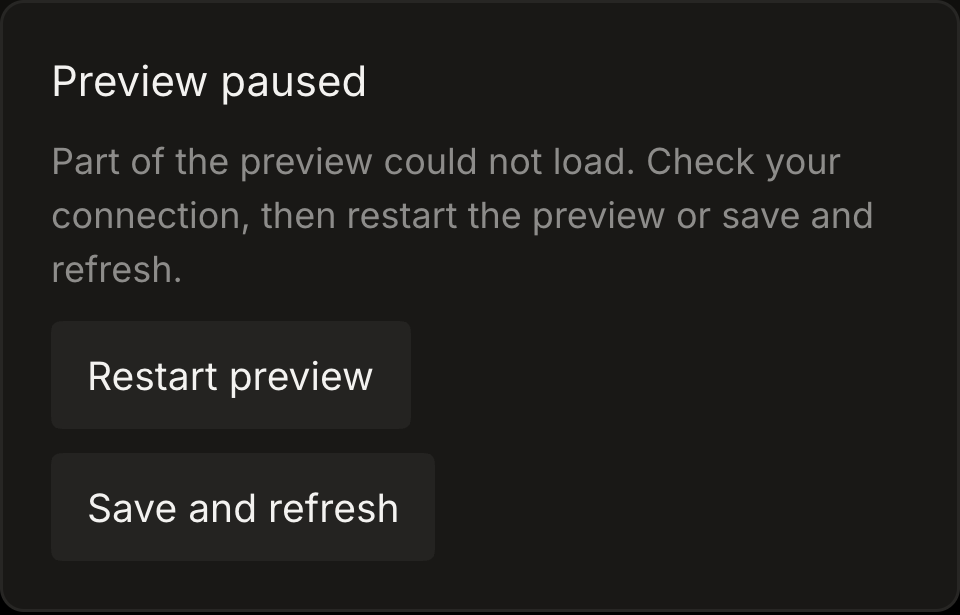
A failed download in the top bar or main Studio panels now shows a recovery notice without closing your project. A preview that cannot start releases its resources before another attempt. Updates also preserve the tracking files needed by older tabs. Try again reloads a control. Restart preview retries the preview, and Save and refresh saves your current work before reloading the page. Direct sign-in links also wait for the account panel to load, so the sign-in form opens on slower connections.
- 01When a control cannot load, check your connection and choose Try again. If the preview is paused, choose Restart preview.
- 02If the notice remains, finish or cancel active jobs and choose Save and refresh.
- 03If saving needs attention, keep the page open and use Projects to retry saving or download a copy.
- 04Open /login or use Sign in. The form opens when the account panel is ready.
Consistent spacing for finish presets
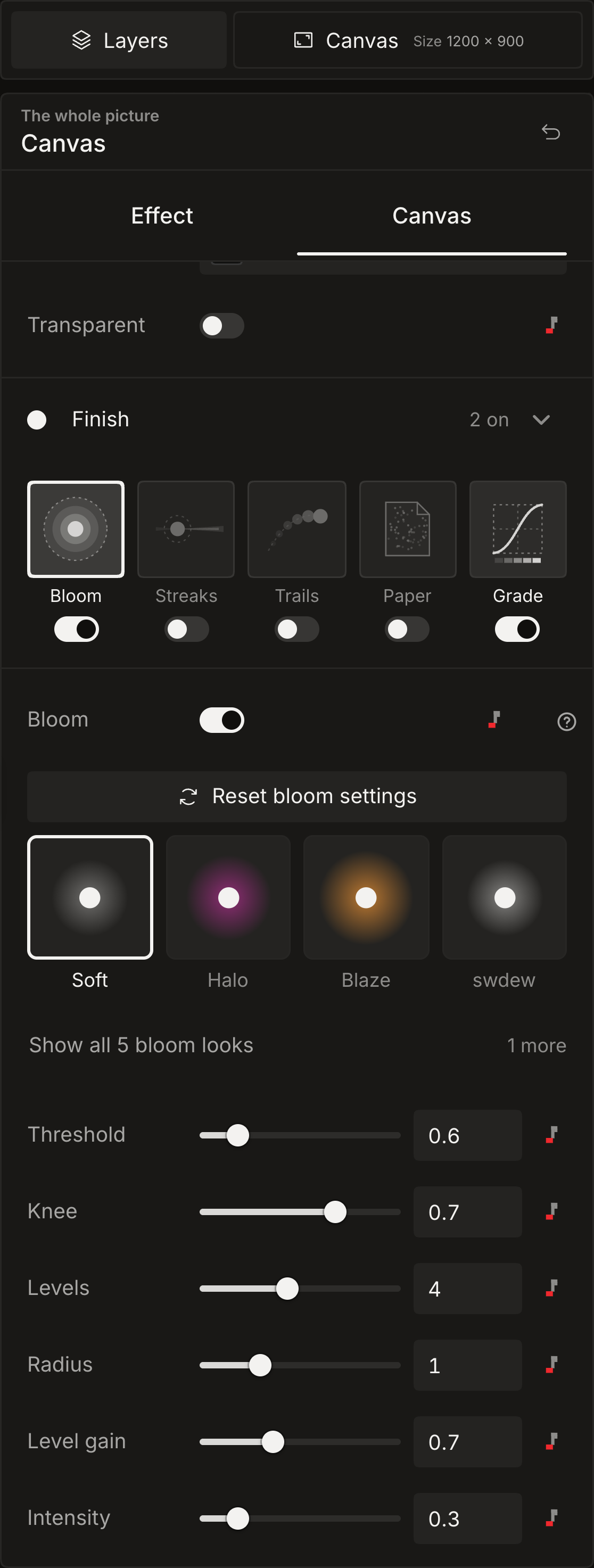
Bloom, Streaks, Trails, Paper and Grade presets now line up with their controls. Reset buttons share the same spacing, including finish settings on individual layers and phones.
- 01Open Canvas, then choose a block under Finish.
- 02Choose a preset or use Reset to restore that block's settings. Layer finish presets are under Appearance.
Browse projects at their original proportions
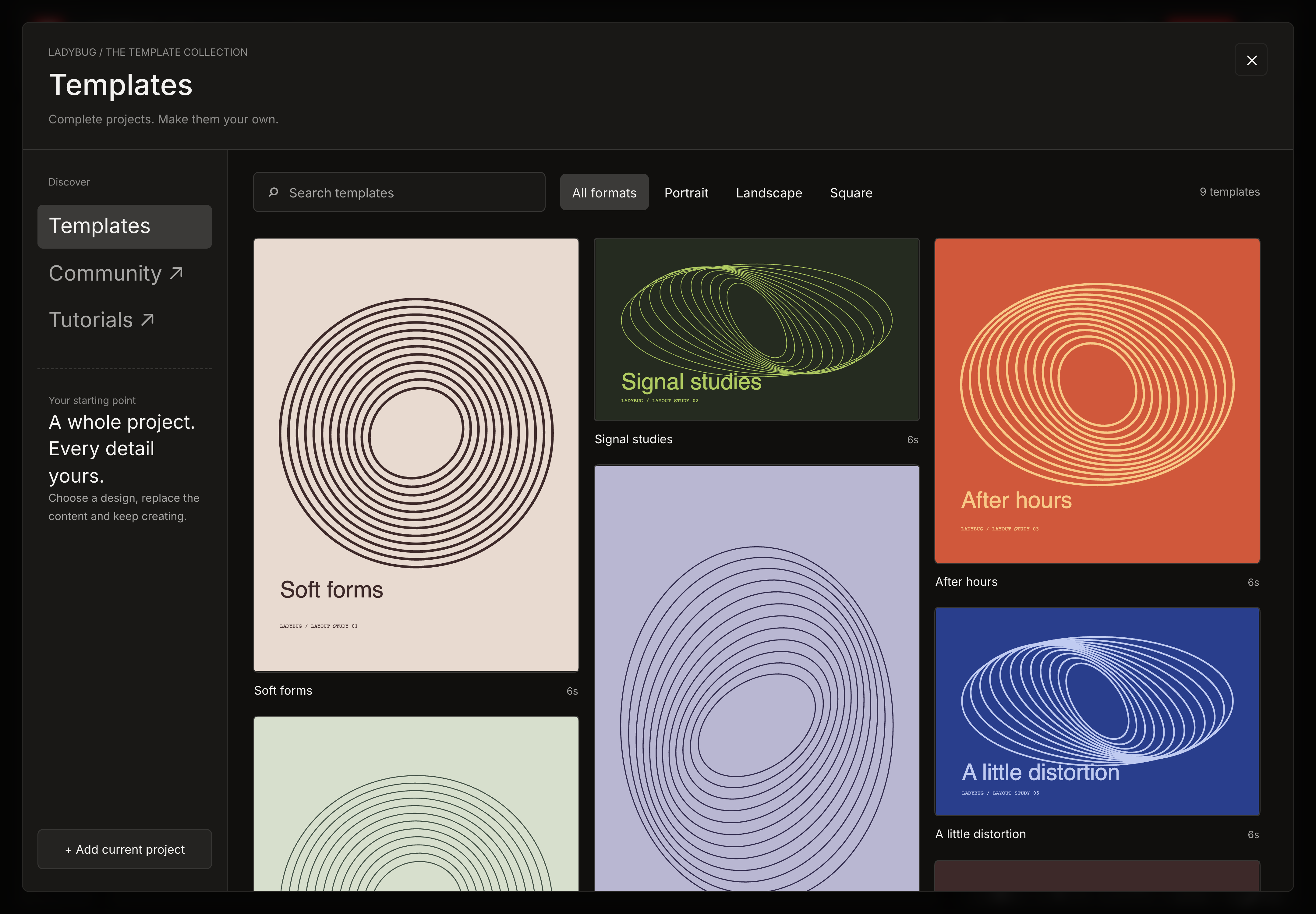
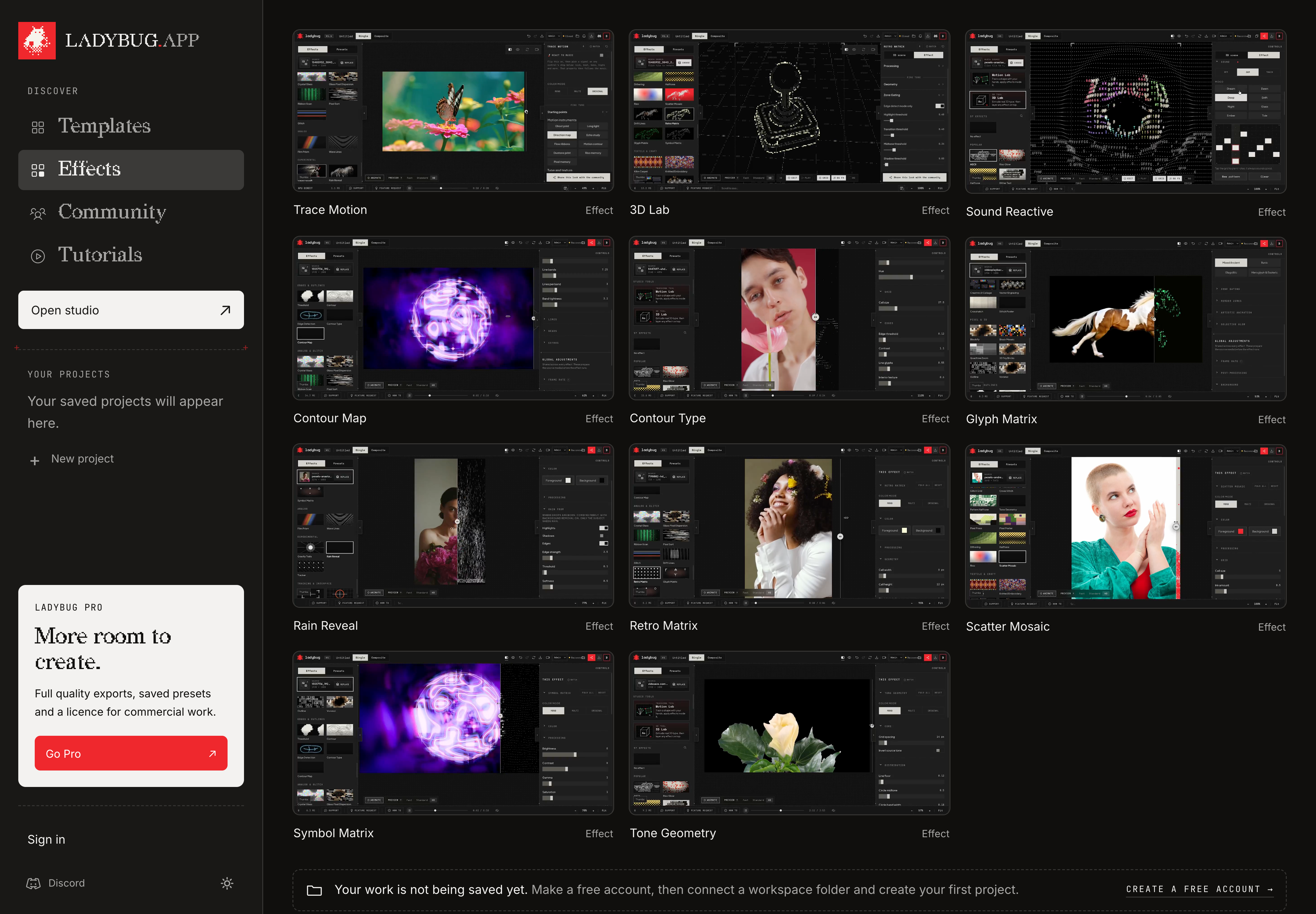
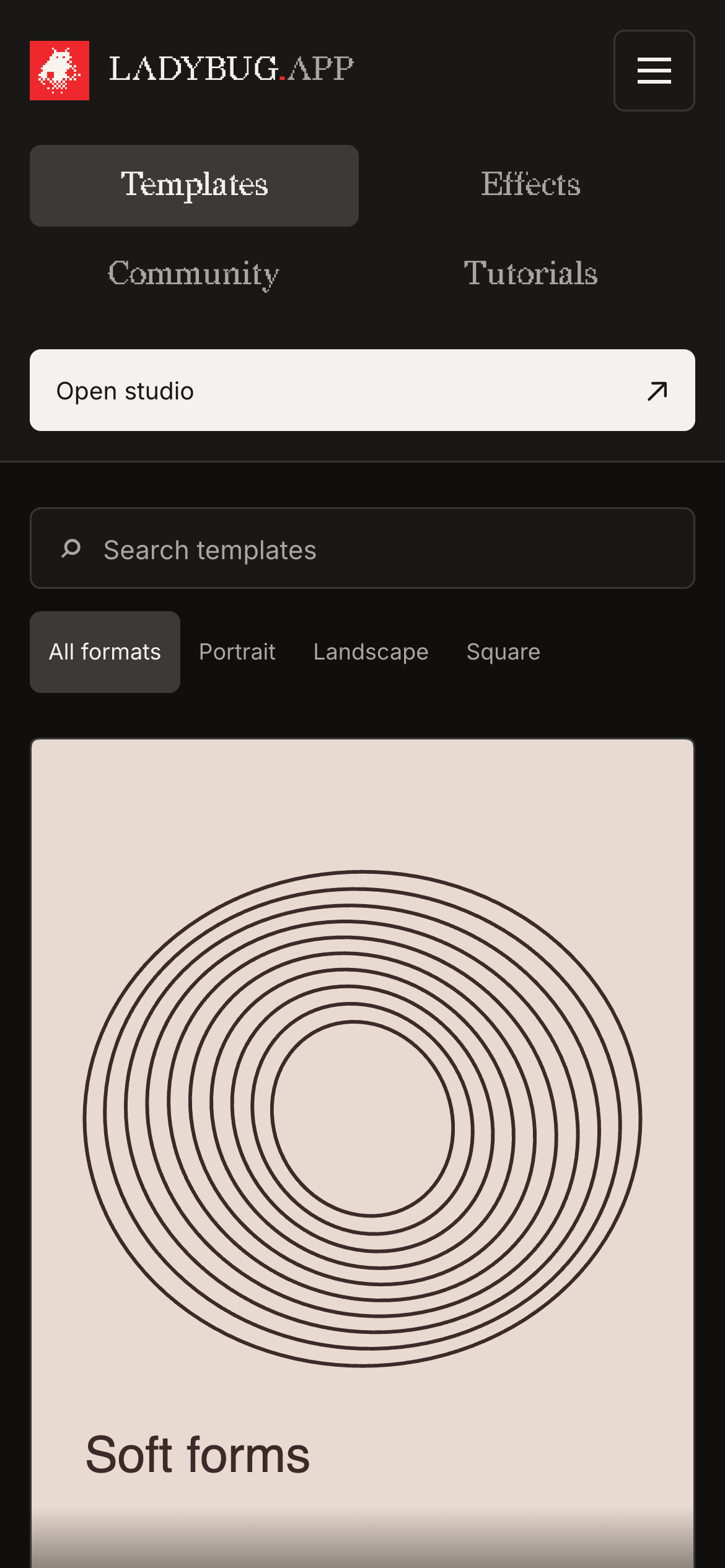
Templates opens a large gallery with search and format filters. Portrait, square and wide designs keep their proportions. Select a project to preview it, then use it as a separate editable project. Studio Home places template search and filters directly above the cards, with no repeated page heading. Effects and Community start directly with artwork. Its sidebar keeps the Ladybug.app logo, compact saved projects, account controls and Community sorting together. On smaller phones, the navigation uses two rows so every destination remains visible, with consistent button spacing and touch targets.
- 01Open Templates in the studio, or visit Studio Home.
- 02On Studio Home, search or choose a format at the top of Templates. Choose a project to preview it. If it includes a video, choose Play preview.
- 03Choose Use template to create your own editable copy. Replace its text or media in the Layers panel.