Studio V2 is in beta
Shipped Friday, 11 Sep 2026 at 15:05 CEST
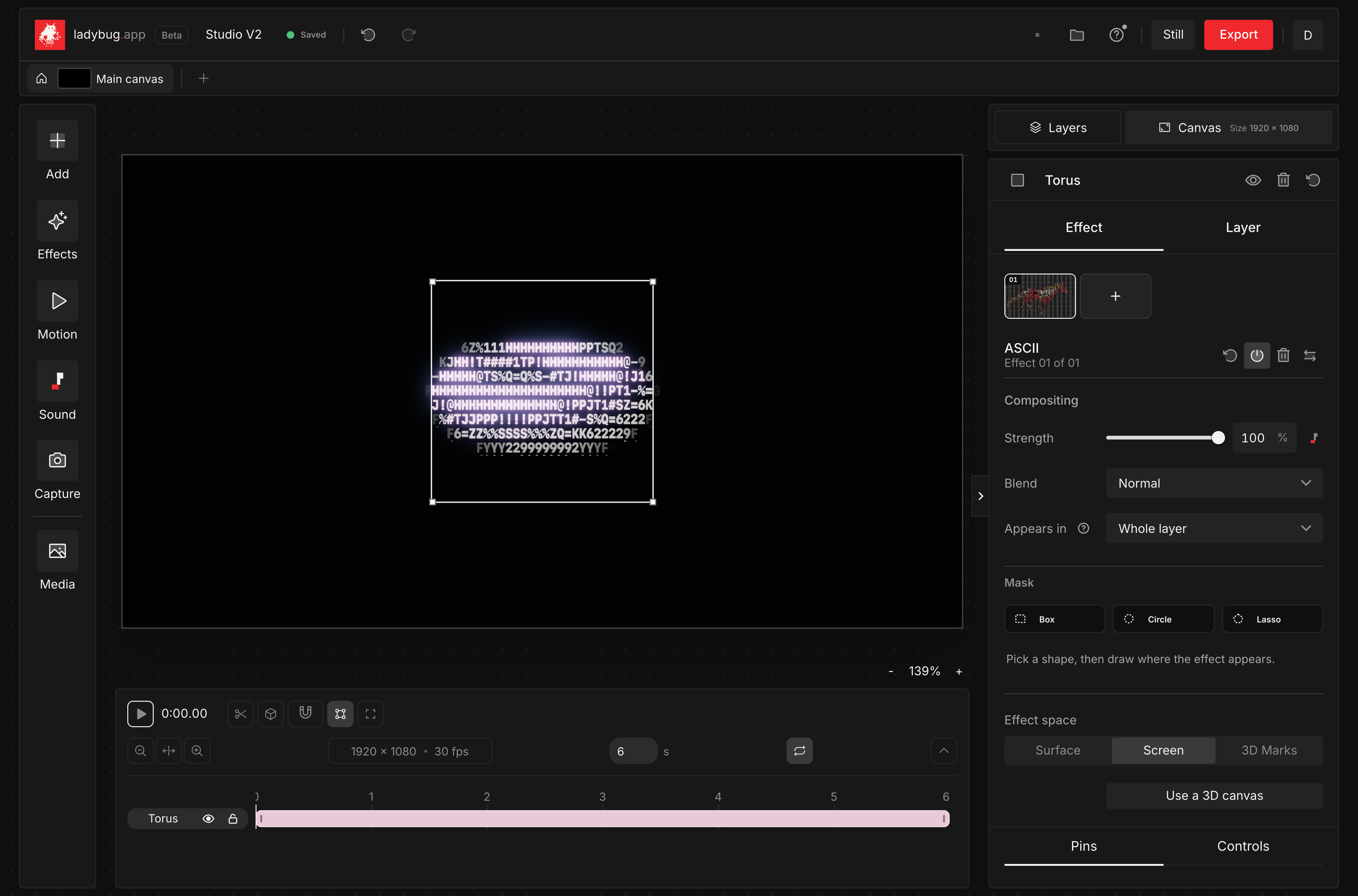
Studio V2 brings the canvas, timeline and controls into one workspace. Import your media from one picker, build a scene with layers and 3D, and shape effects with clearer controls. Studio V2 is in beta while we continue improving it.
Meet Studio V2
The inspector separates effect compositing, sound, appearance and source controls. Media accepts images, video, SVG, GLB, GLTF and OBJ files. Sound uses lightweight frequency analysis, and shape masks let you choose where each effect appears.
- 01Choose Media on an empty canvas to import a file, or use Add for text, shapes and 3D solids.
- 02Select a layer and use Effect or Layer to find its controls. Add an effect after adding content to the canvas.
- 03Open Sound, choose the source and analyze the selected Part before binding a control.
- 04For a GLTF or OBJ model with separate resources, select its companion files together. Model import currently uses the static pose.
Open the correct folder version
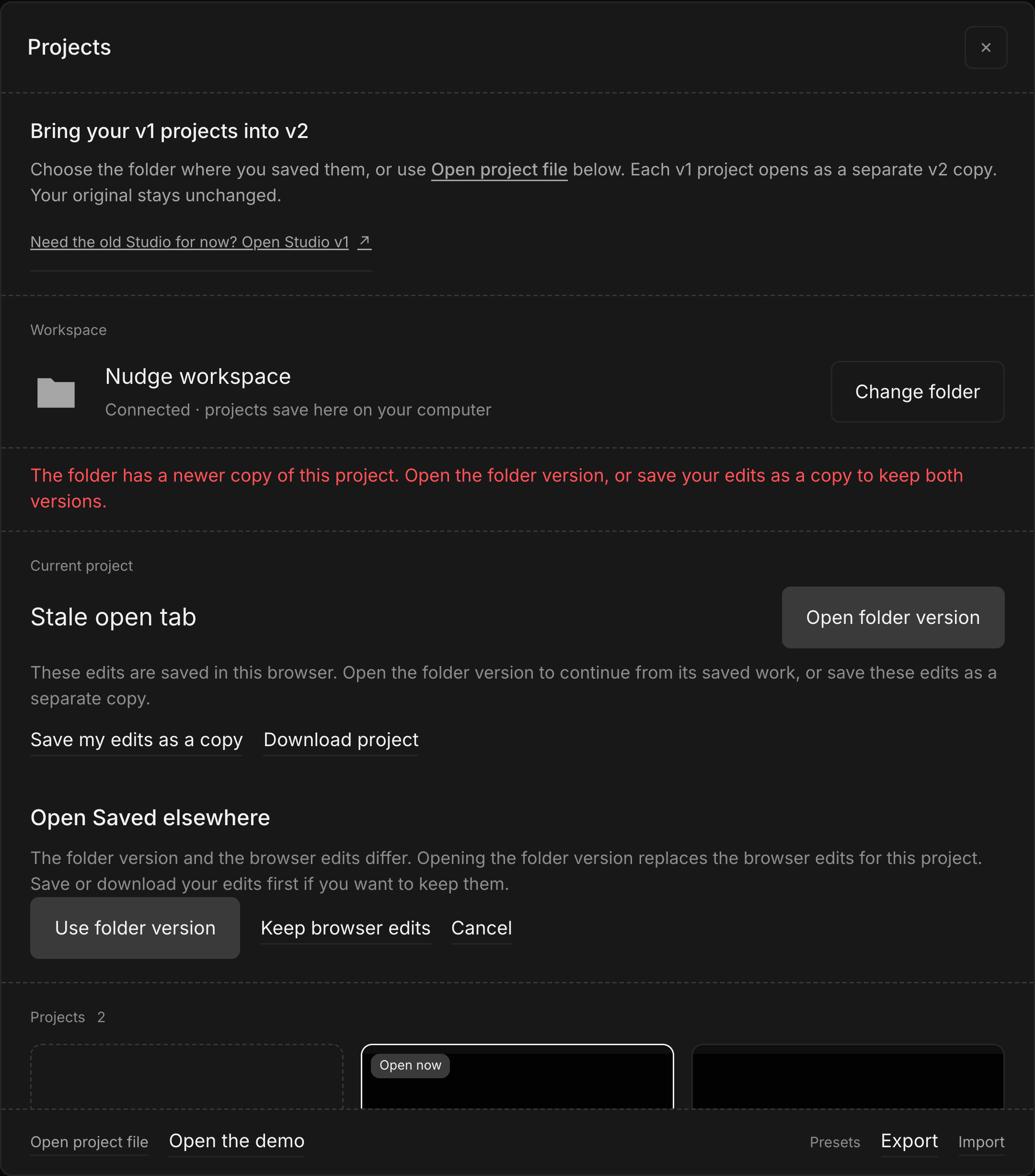
Projects now opens the saved folder version instead of mistaking a later browser recovery timestamp for newer work. If the browser edits differ, choose the folder version or keep the browser edits. Opening the folder version resets the save baseline so you can continue without making repeated copies.
- 01Open Projects when the top bar says Folder conflict.
- 02Choose Open folder version, then Use folder version to continue from the saved folder project.
- 03To retain different browser edits, choose Save my edits as a copy or Download project before using the folder version. Existing copies stay unchanged.
Know where your project is saved
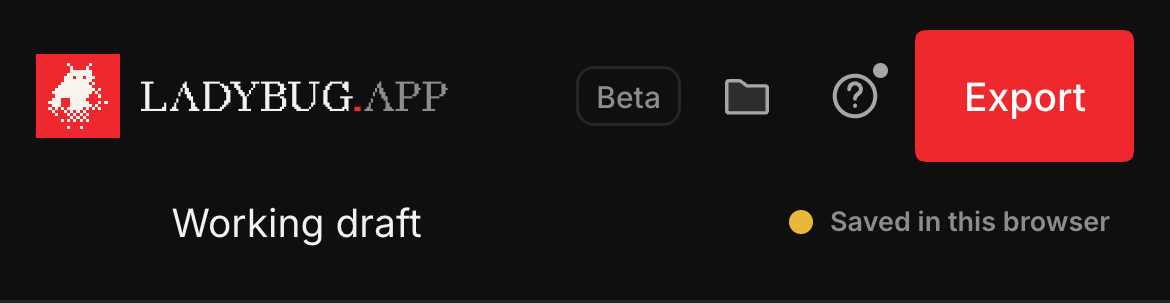
The original LADYBUG.APP wordmark is back in uppercase Redaction 50. The header tells you whether your latest save is in this browser or in your workspace folder, with the same information visible on phones.
- 01Read the save badge beside your project name to check where your project is saved.
- 02Click Saved in this browser to open Projects and choose a folder or download a copy.
- 03After the folder save finishes, the badge changes to Saved in folder.

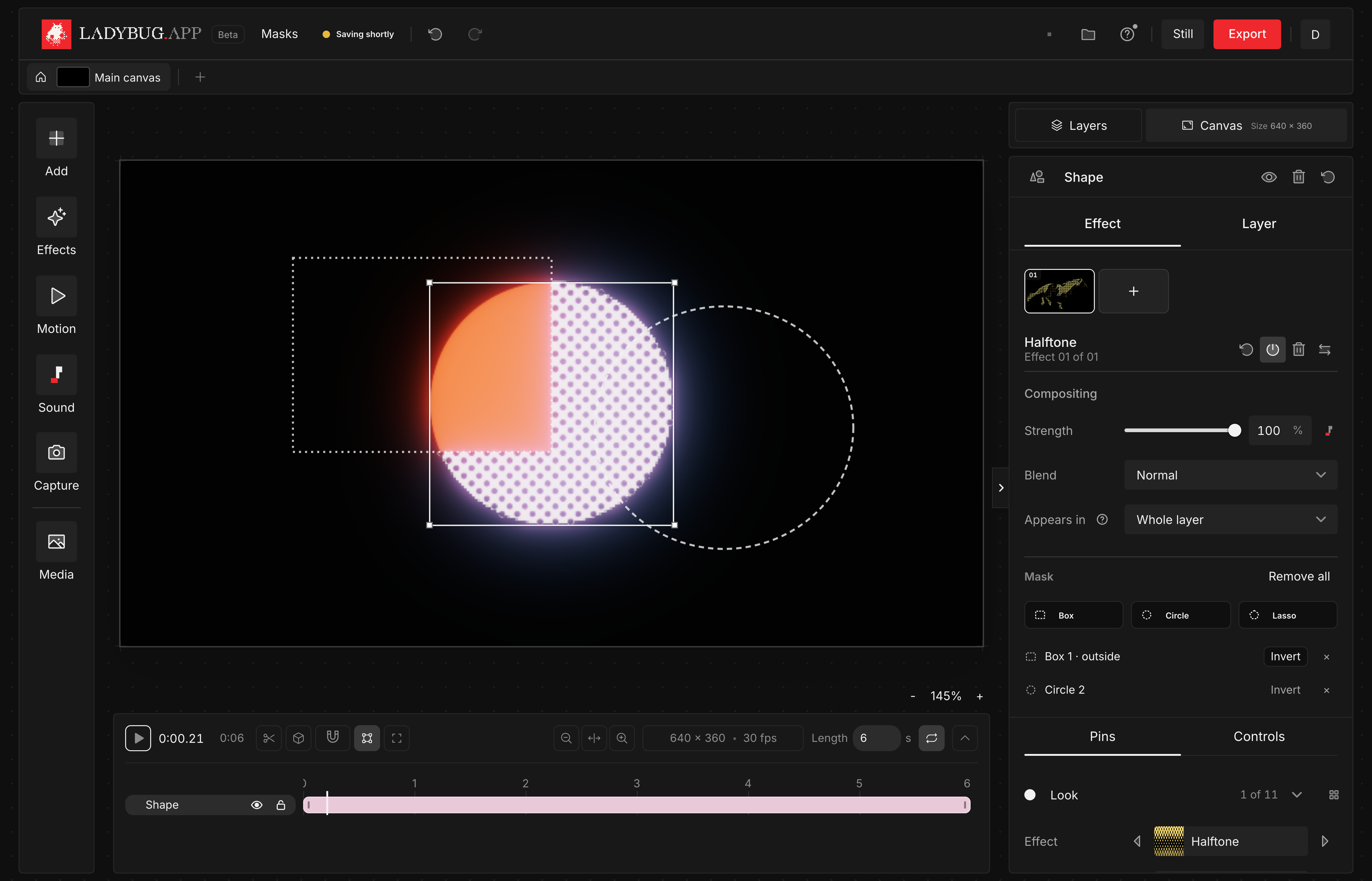
See mask outlines while editing
Mask outlines appear while you draw or work in the Mask controls. They disappear when you move to other controls or start playback. The masks stay applied to your effects.
- 01Select an effect and choose Box, Circle or Lasso in Mask, then draw on the canvas.
- 02Hover or focus the Mask controls to see the outlines again.
- 03Choose another control or start playback for a view without mask outlines.