Tune and correct your sound
Shipped Wednesday, 30 Sep 2026 at 18:00 CEST
Frequency response learns repeating snare sounds within a Part and recovers darker hits. Use your own examples to find similar kicks and snares or ignore a repeated false trigger. Preview the changes with audible hit markers, then apply them. Saved examples and manual corrections are used by preview and export.
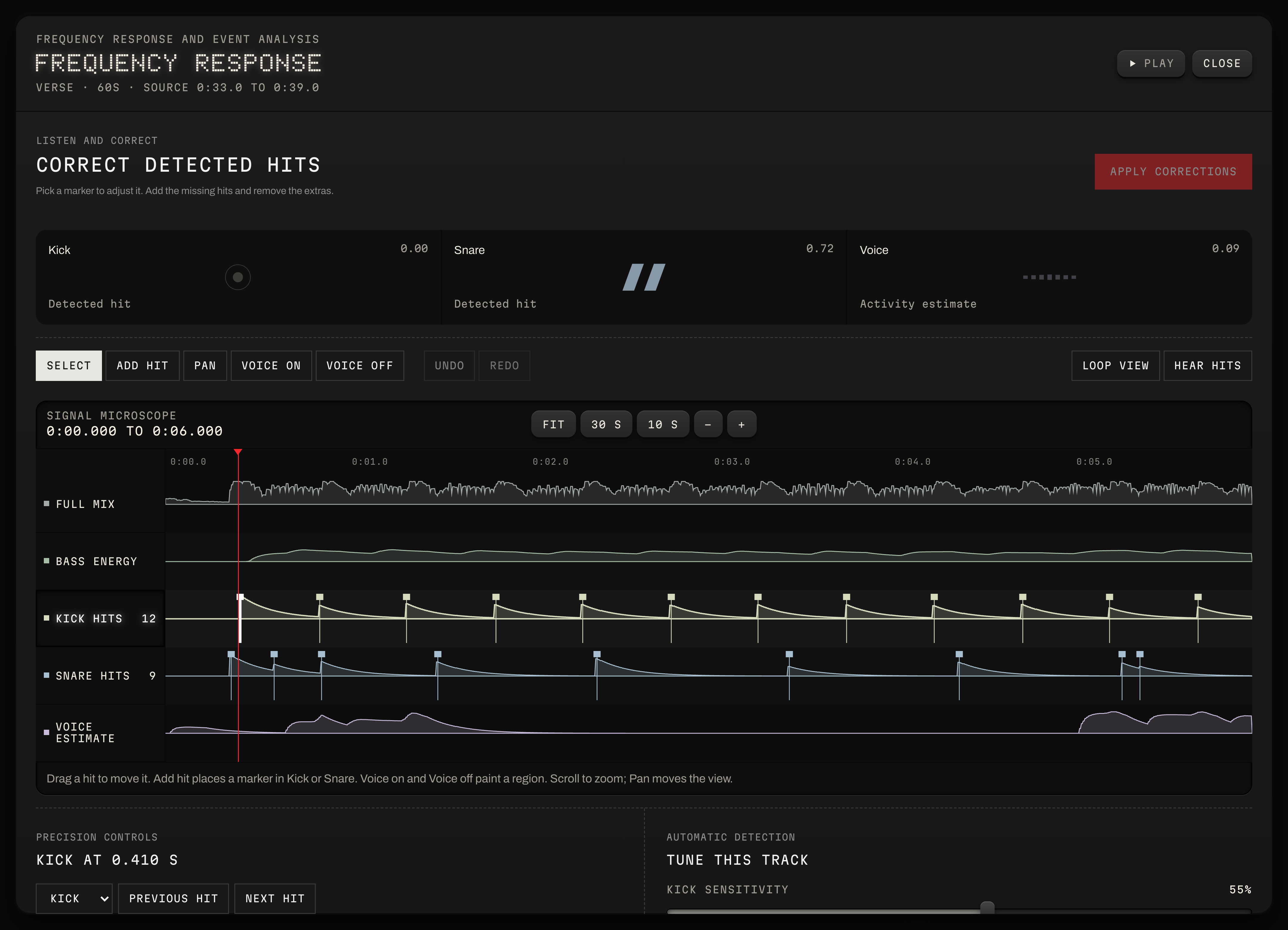
Correct the rhythm
Place missing kicks and snares, remove extra hits, or drag a marker to its exact time. Change a hit’s strength and paint voice on or off for a region. Each applied version remains available in Saved analyses.
- 01Open Sound, analyze a Part with Frequency response, then open its signal microscope.
- 02Choose Select to drag an existing hit, or Add hit to place a kick or snare. Use Previous hit and Next hit for keyboard editing.
- 03Zoom into a section, choose Loop view, and enable Hear hits to compare the markers with the music.
- 04Use Voice on or Voice off and drag across the voice lane to correct a region.
- 05Choose Apply corrections to save. Undo works while editing; earlier applied versions are in Saved analyses.
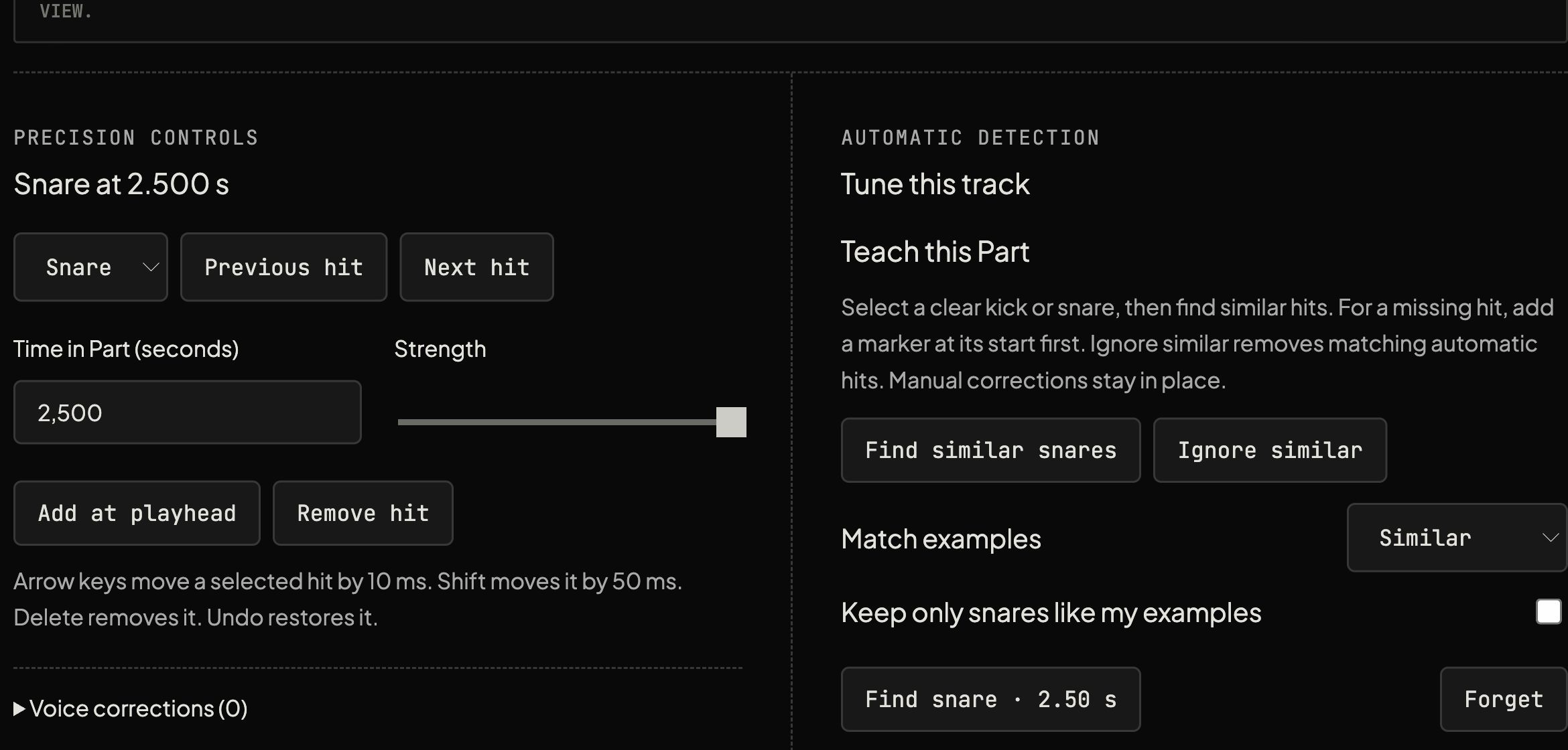
Teach detection from your music
Select a clear kick or snare and find similar hits across the Part. Ignore similar removes matching automatic hits. Choose how closely sounds must match, or keep only sounds like your examples. Manual corrections stay in place. Automatic voice detection remains an estimate; use Voice on and Voice off to correct regions.
- 01Open Sound, then Inspect signals. For an older saved analysis, choose Update detection to enable examples.
- 02Select a clear kick or snare and choose Find similar. For a missing hit, add a marker at its start first.
- 03Select a false trigger and choose Ignore similar. Use Match examples to adjust the range of sounds accepted, then listen with Hear hits.
- 04Choose Apply corrections to save. Examples and corrections remain available when you reopen the project or update detection.
- 05For frequency tuning, open Match this track. Default settings is a useful starting point after updating an older analysis.